
Support for

Parents & Carers

Helping you guide your young person

We know that parenting a young person isn’t always easy — and we’re here to walk alongside you. This page has been created to support you, whether you’re looking for practical tips, resources to help you in a crisis, or tools to feel more confident in your parenting journey.

You’ll also find information on how to set up and use the Compass platform and who to contact if you have questions or concerns.

Online Portal

Access Tips

Starting in Term 4, 2025, Saints College will introduce Compass — a new online portal designed to keep parents and carers informed. Through Compass, you’ll be able to access up-to-date information about our school, track your young person’s progress, and manage attendance details with ease.

Using the Compass School Manager App on your phone

1

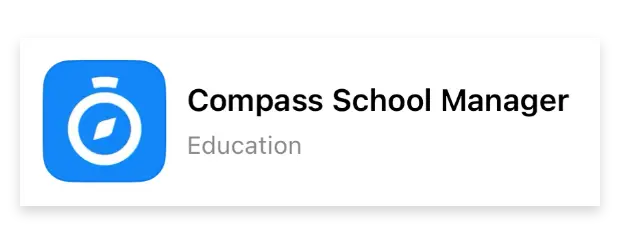
The app is available to download for free from the Apple App Store or the Google Play store:

2

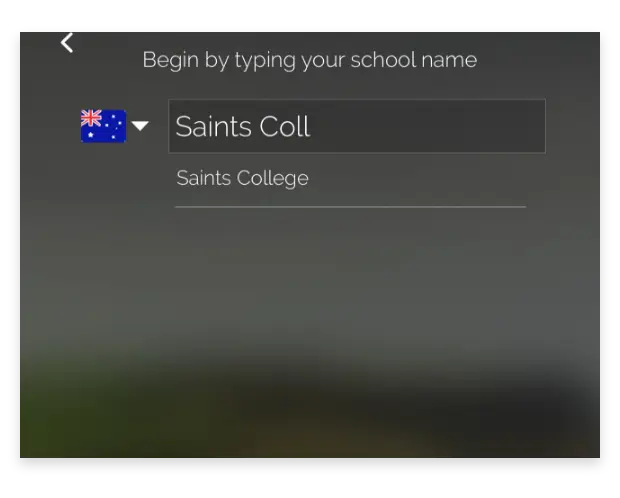
Once installed, enter Saints College in search bar.

3

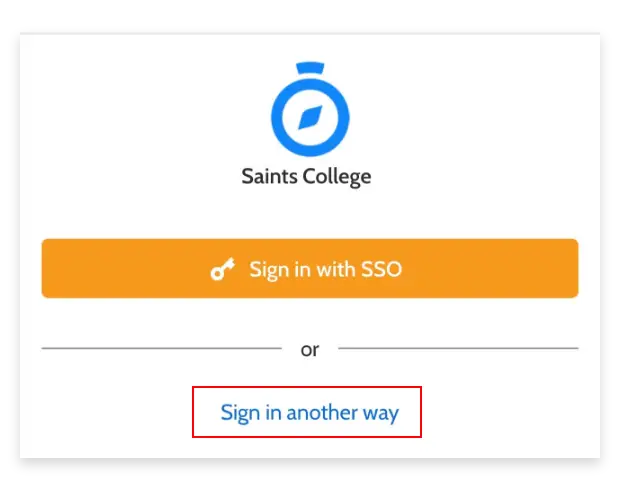
Select Sign in another way.

4

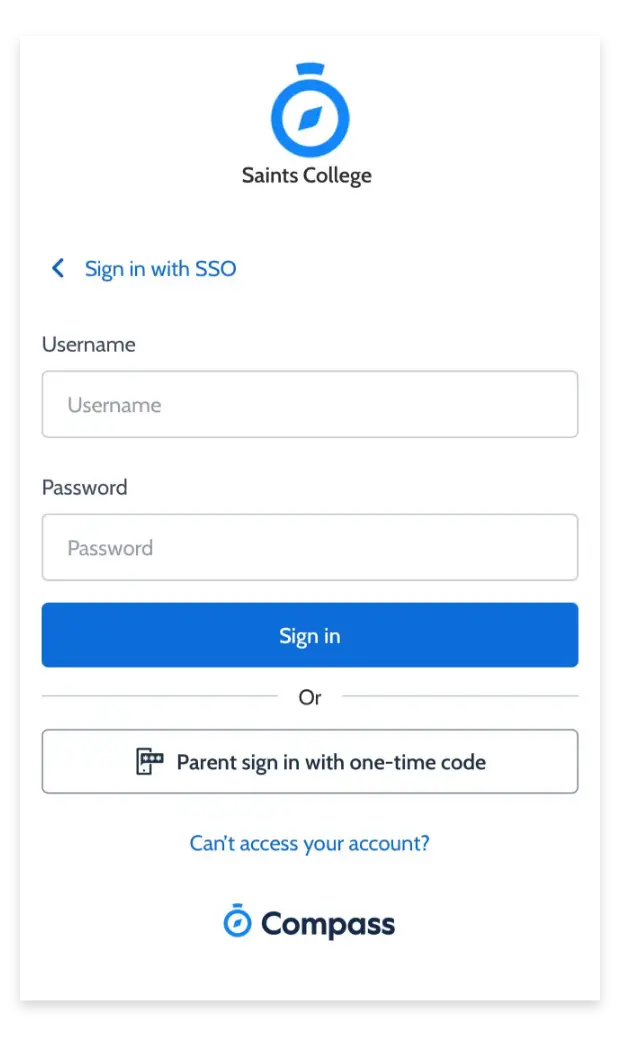
Enter login details which were emailed to you from Saints College or provided to you in a letter. (If you don't have this, please contact your school admin).

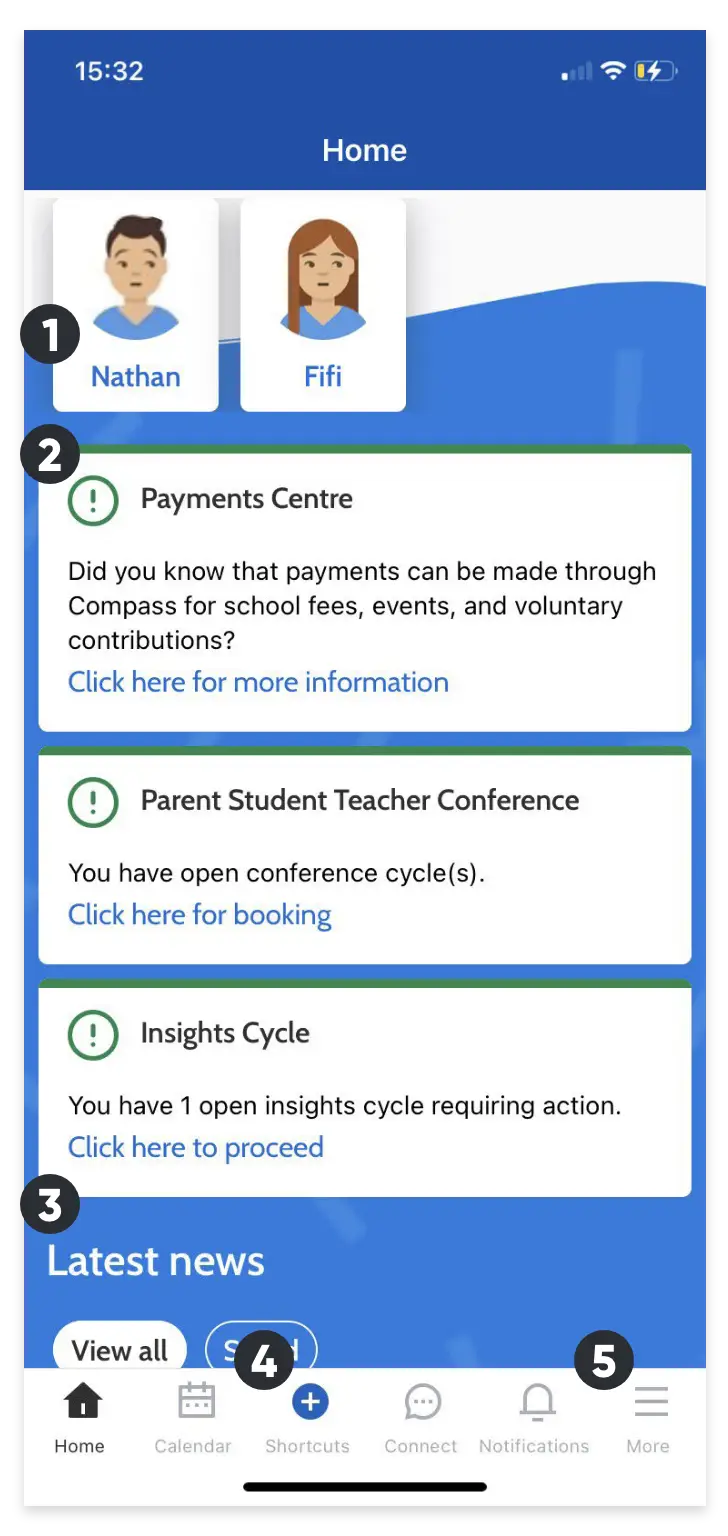
  • Home

    The House icon can be clicked at any time to take you back to the Home screen in Compass.

  • Calendar

    The Calendar icon will take you to view the available Schedules i.e. school events, your child’s schedule etc.

  • Shortcuts

    The ‘Plus’ icon will give you access to ‘Shortcuts’, such as paying for an Event, and adding an Attendance note.

  • Connect

    The ‘speech bubble’ icon will open Connect where you can reach out to your children’s teachers.

  • Notifications

    The bell icon opens your Notifications. This contains a list of all notifications received.

  • More

    The hamburger menu icon gives you access to the More menu. Conferences, Events, Canteen, and much more can be found in this menu.

  • Profiles

    Each of your children who attend the school will appear at the top of the screen. Click their image to go to their profiles. Within the profile you can access information pertaining to your child such as their schedule, homework tasks, attendance approvals and reports.

  • Alerts

    Notifications of items that require your action.

  • News Feed

    Scroll through News items to keep up-to-date with posts from school.

  • Shortcuts

    Quickly access communications, payments and add Attendance Notes for your child/children.

  • More

    Gives you access to additional actions.
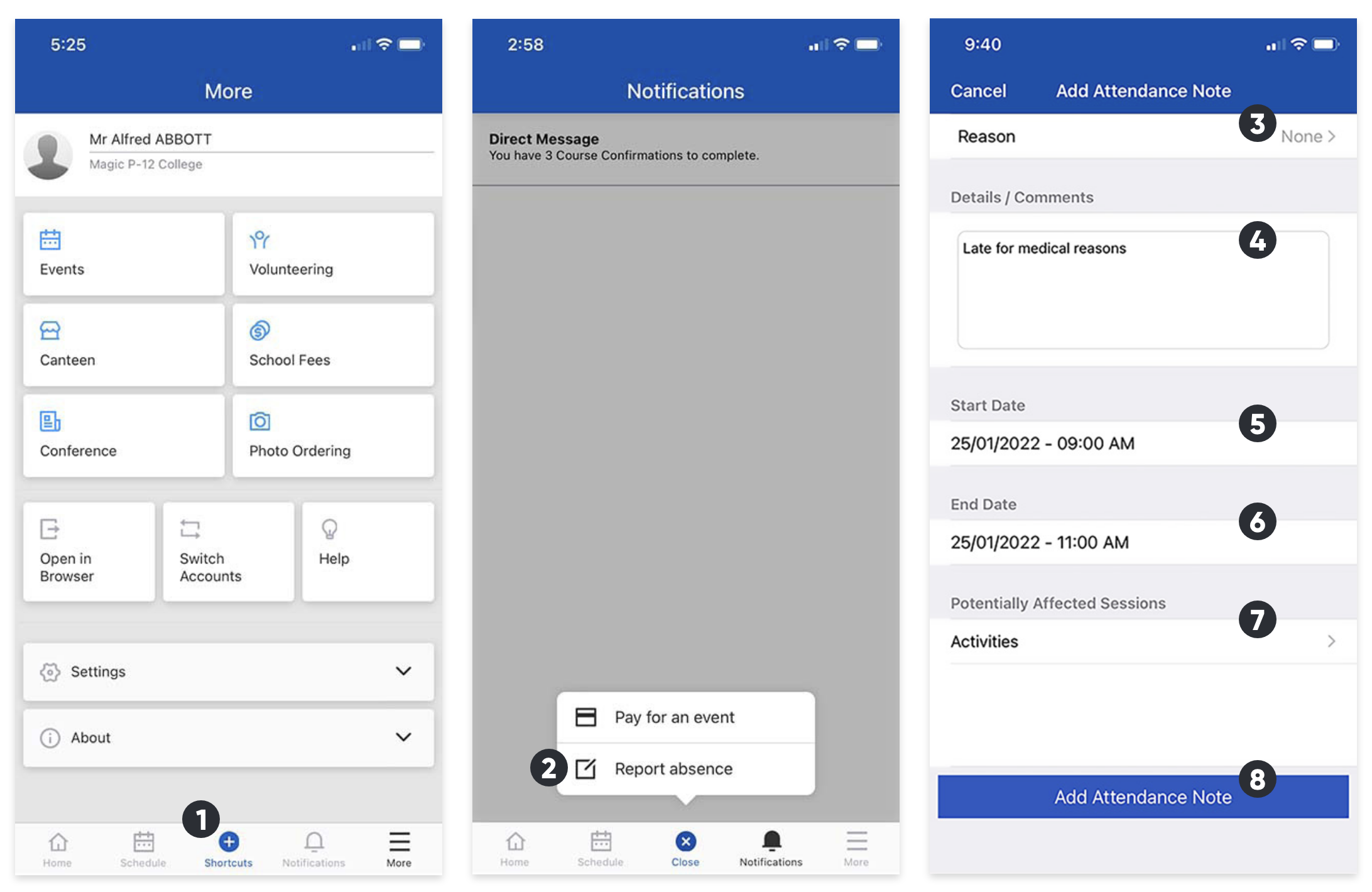
  • Click Shortcuts

    From any page, click on the Shortcuts button (Plus icon) at the bottom of the screen.

  • Report absence

    Click on the 'Report absence' option. this will take you to the Add Attendance Note screen.

  • Reason

    Select the reason for the absence.

  • Details / Comments

    Type in details or additional comments.

  • Start date

    Select the start date and time of the period of absence.

  • End date

    Select the end date and time of the period of absence.

  • Potential Affected Sessions

    Select any sessions that will be affected by the absence.

  • Add Attendance Note

    Once the fields are filled in, click the 'Add Attendance Note' button.
Compass absence reasoning is set by the Department of Education; however, we at Saints College realise the wording is not always accurate, or sensitive to your young person’s experience, therefore, please see below reasons you may use the prompted responses.

  • Medical/Illness – Your YP is not at school for medical reasons
  • Medical Appointment – Your YP is not at school due to attending a medical appointment
  • Refusal – Your YP is unable to attend school due to needing a mental health/wellbeing day
  • Bereavement – Your YP is not at school due to attending a funeral, death in the family or absence due to a death
  • Parent Choice – Your YP is not at school due to any other reason that may include technology/network issues, missed school bus, attending a legal/court meeting, other cultural observance
  • Family Holiday – Your YP is away on a family holiday
  • Sorry Business – Your YP is gathering with their family due to Sorry related grief or loss within the Koorie community

Accessing Compass on desktop computers

Compass is a web-based system that is accessible on any modern web browser (Chrome, Firefox, Safari etc).

Every family receives separate logins to our school’s Compass site. This log in information is provided to you by the school. If you need assistance locating the Compass site link for our school, go to: schools.compass.education

You will then be able to search for our school and access the link.

1

To log in, you will require your unique username and password. These details will be provided to you by the school, however if you are yet to receive them, please contact the school office.

You will initially be provided with a temporary password that you will be prompted to update to one of your choosing when you log in for the first time. Once you have your username and password, go to your Compass portal, enter the details and click ‘Sign in’.

2

If it is the first time you are logging in, you will be required to confirm your email address and mobile number. These details may be used by the school for SMS/email communications and password recovery.

3

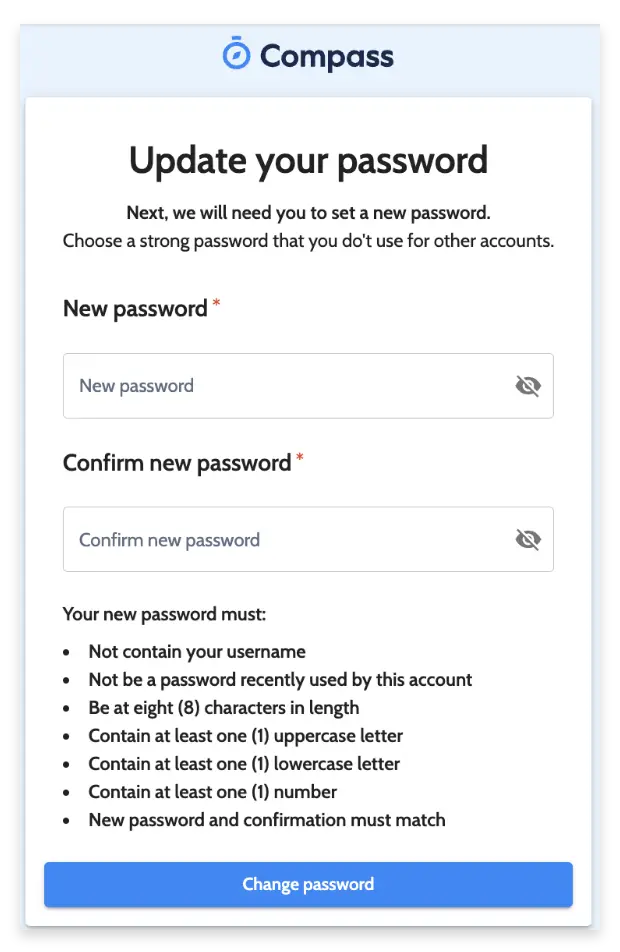
Once you have confirmed your details, you will be required to change your temporary password to one of your choosing. When you have entered your new password, click ‘Save’.

If you attempt to log in using the incorrect details ten times in a row, you will be locked out of your account for thirty minutes. If you have forgotten, or aren’t sure of your details, please contact the school office.

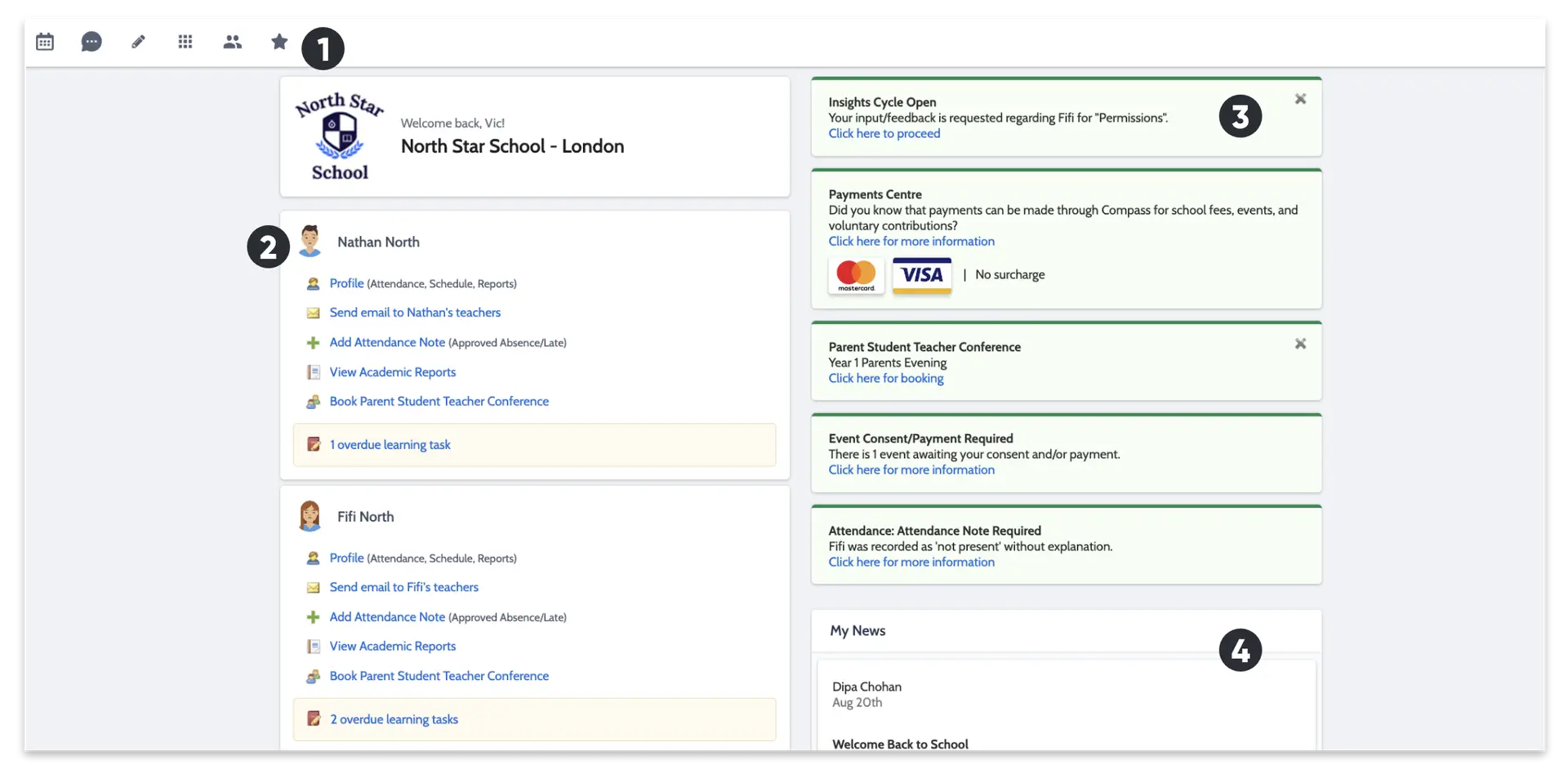
  • Menu

    Across the top of the screen, you will see a series of menu icons, each with drop-down options. These are further explained in the following section.

  • Child Information

    You will see each child you have at the school listed here. The clickable items will take you to other areas of the portal e.g. clicking ‘View Academic Reports’ will take you to you child’s available Report.

  • Alerts

    On the top right, you will find a list of clickable notifications that will prompt you to action something.

  • News Feed

    Posts in the Newsfeed allow the school to communicate key information to you. Posts remain accessible for as long as the school has determined, with the most recent posts displayed first. Posts that are set as Priority, however, will always show at the top.
  • Home

    The Home icon can be clicked at any time to take you back to the Home Page in Compass.

  • Calendar

    The Calendar icon will take you to view the available Calendars i.e. school events, your child’s schedule etc.

  • Compass Connect

    The Chat icon is the Compass Connect messaging tool allowing staff to communicate with you directly

  • Teaching and Learning menu

    The Pencil icon opens the Teaching and Learning menu from which you can view all the Assessments assigned to your child/children.

  • Organisation menu

    The Grid icon will open the Organisation menu. Here you can access the Events page.

  • Community menu

    The People icon is the Community menu. Here you can book Parents’ Evening times (when scheduled). You can also access any School Resources made available from this menu.

  • Favourites menu

    The Star icon opens the Favourites menu. This contains links to useful websites the school recommends.

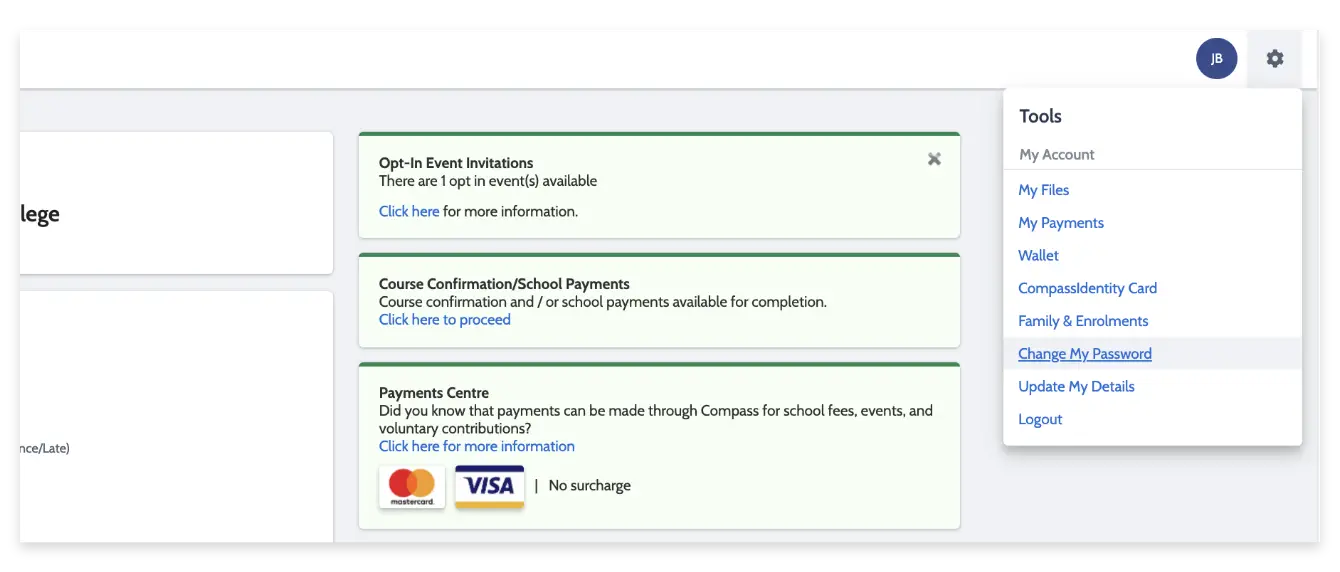
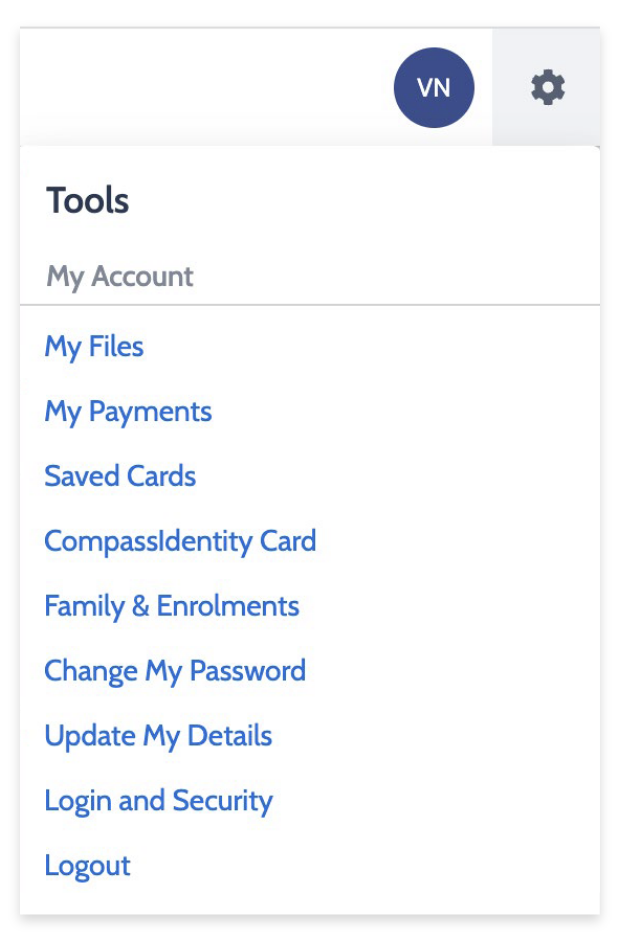
  • Tools menu

    The Cog icon gives you access to the Tools Menu. Here you can opt to change your password, view your payment history and update your details.

1

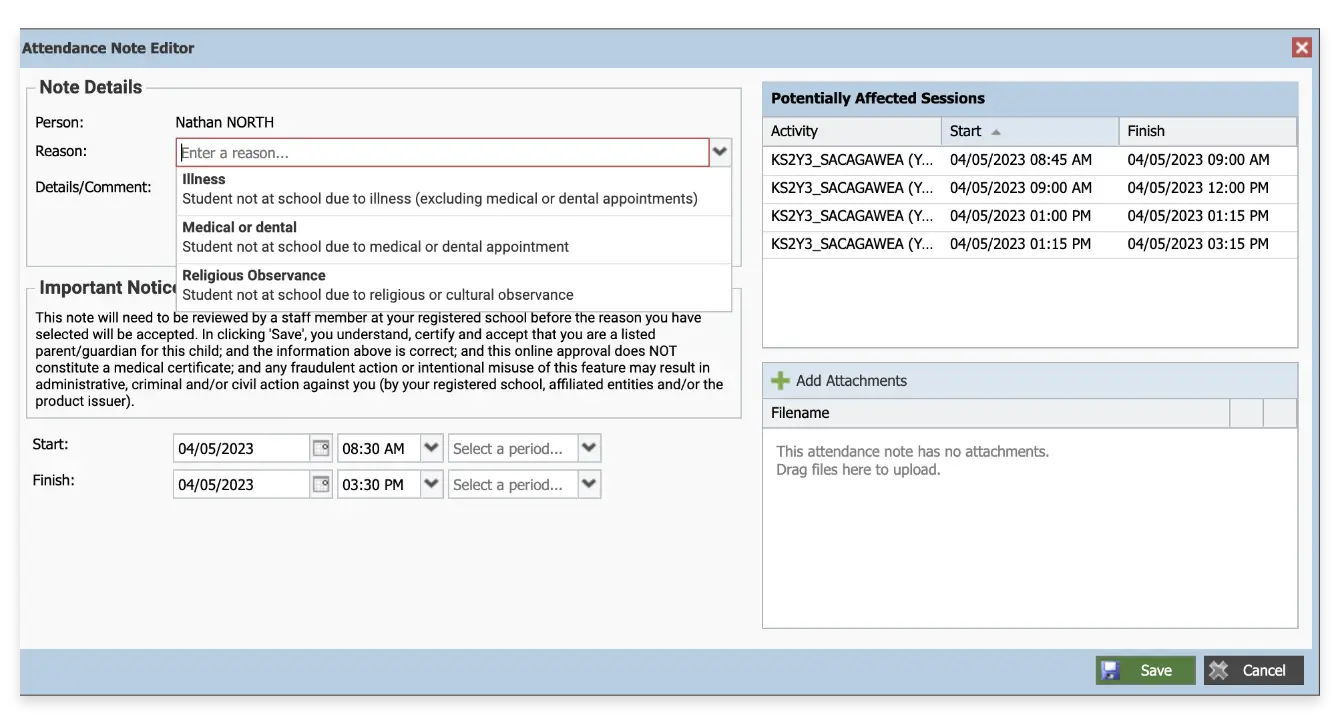
If your child is going to be absent from school, you can add in an Attendance note to advise the school. To do so, click ‘Add Attendance Note (Approved Absence/Late)’.

2

A Note screen will open. Select the appropriate reason from the drop down list; add in any additional information if applicable in the Details/Comment box. Select the start and finish date/time of the absence and click ‘Save’.

1

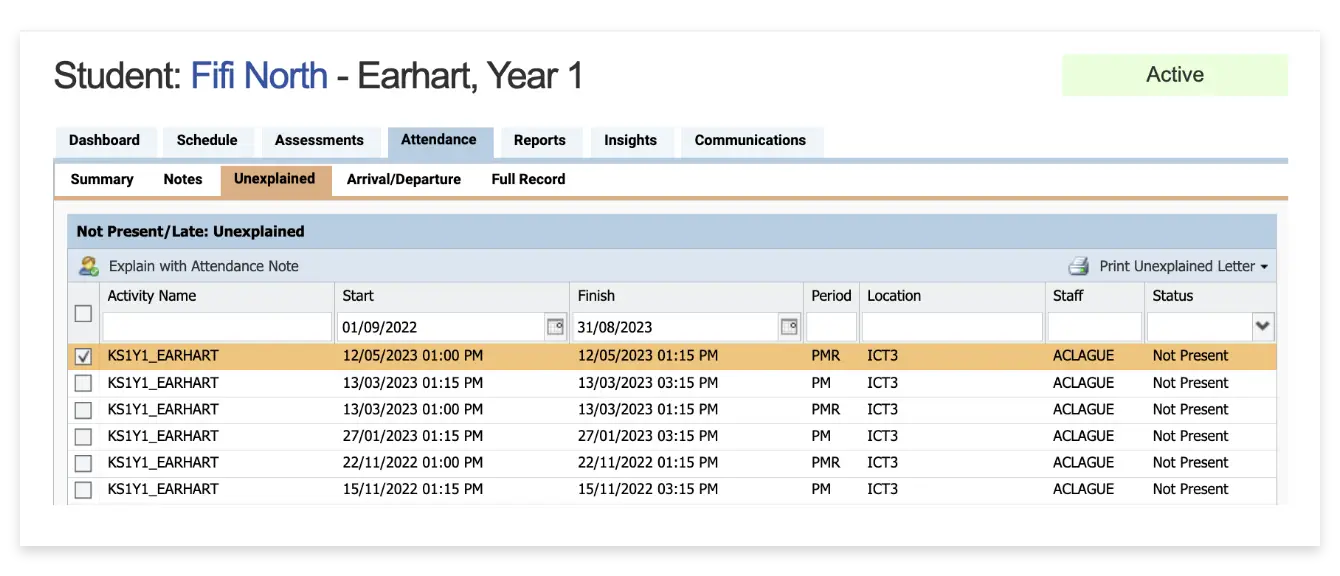
If your child has been marked Not Present without an explanation, you will be required to add an ‘Attendance Note’.

You will see an alert on your homescreen.

Click the alert and it will take you to your child’s ‘Unexplained’ attendance tab where you will see any sessions listed for which they were marked as Not Present or Late.

2

Select the session (or sessions) that you are adding a note for and then click ‘Explain with Attendance Note’. This will cause the Attendance Note screen to pop open.

3

Select the applicable reason for the absence and add in the relevant details/comment.

Click ‘Save’. This will assign the attendance note to the sessions you selected and they will update to no longer show as unexplained absences.

Compass absence reasoning is set by the Department of Education; however, we at Saints College realise the wording is not always accurate, or sensitive to your young person’s experience, therefore, please see below reasons you may use the prompted responses.

  • Medical/Illness – Your YP is not at school for medical reasons
  • Medical Appointment – Your YP is not at school due to attending a medical appointment
  • Refusal – Your YP is unable to attend school due to needing a mental health/wellbeing day
  • Bereavement – Your YP is not at school due to attending a funeral, death in the family or absence due to a death
  • Parent Choice – Your YP is not at school due to any other reason that may include technology/network issues, missed school bus, attending a legal/court meeting, other cultural observance
  • Family Holiday – Your YP is away on a family holiday
  • Sorry Business – Your YP is gathering with their family due to Sorry related grief or loss within the Koorie community
1

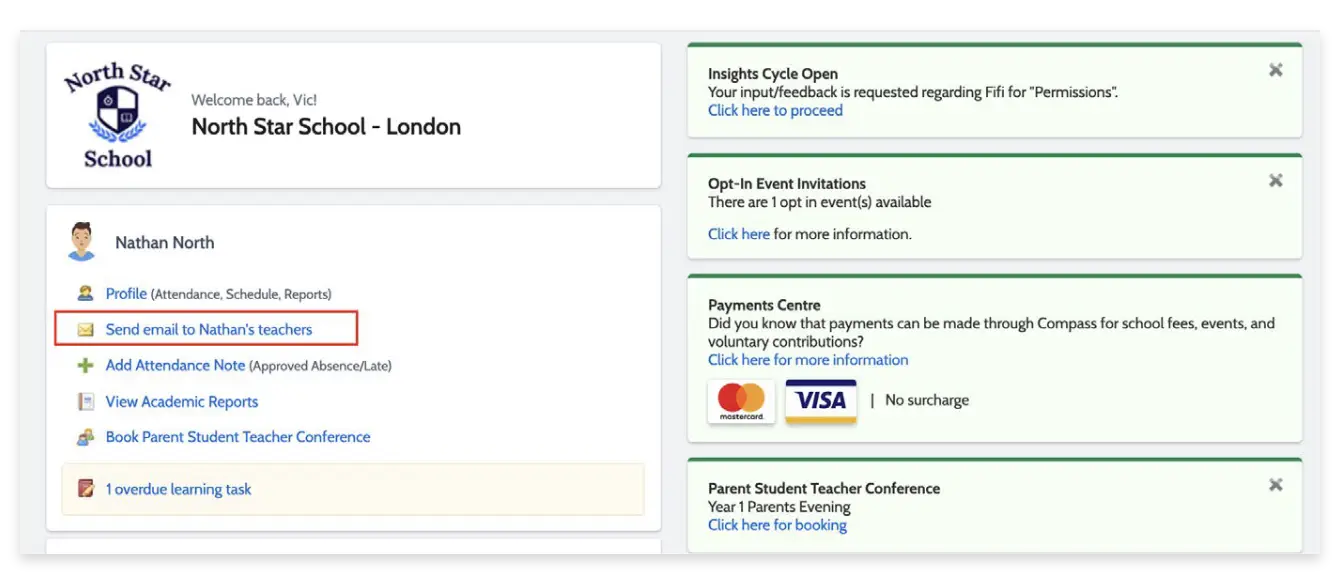
To email your child’s teachers, click the option listed under your child’s name on your dashboard.

2

This will open the email box with your child’s teacher/s automatically selected as the recipient/s.

3

Remove any teachers that the email is not relevant to by clicking the red cross next to their name. To add any additional staff, click ‘Add Recipients’.

4

Add in your subject information and email content. Click ‘Send’ to issue to the listed recipients.

You will receive a copy of the sent email to the email address listed for your profile in Compass.

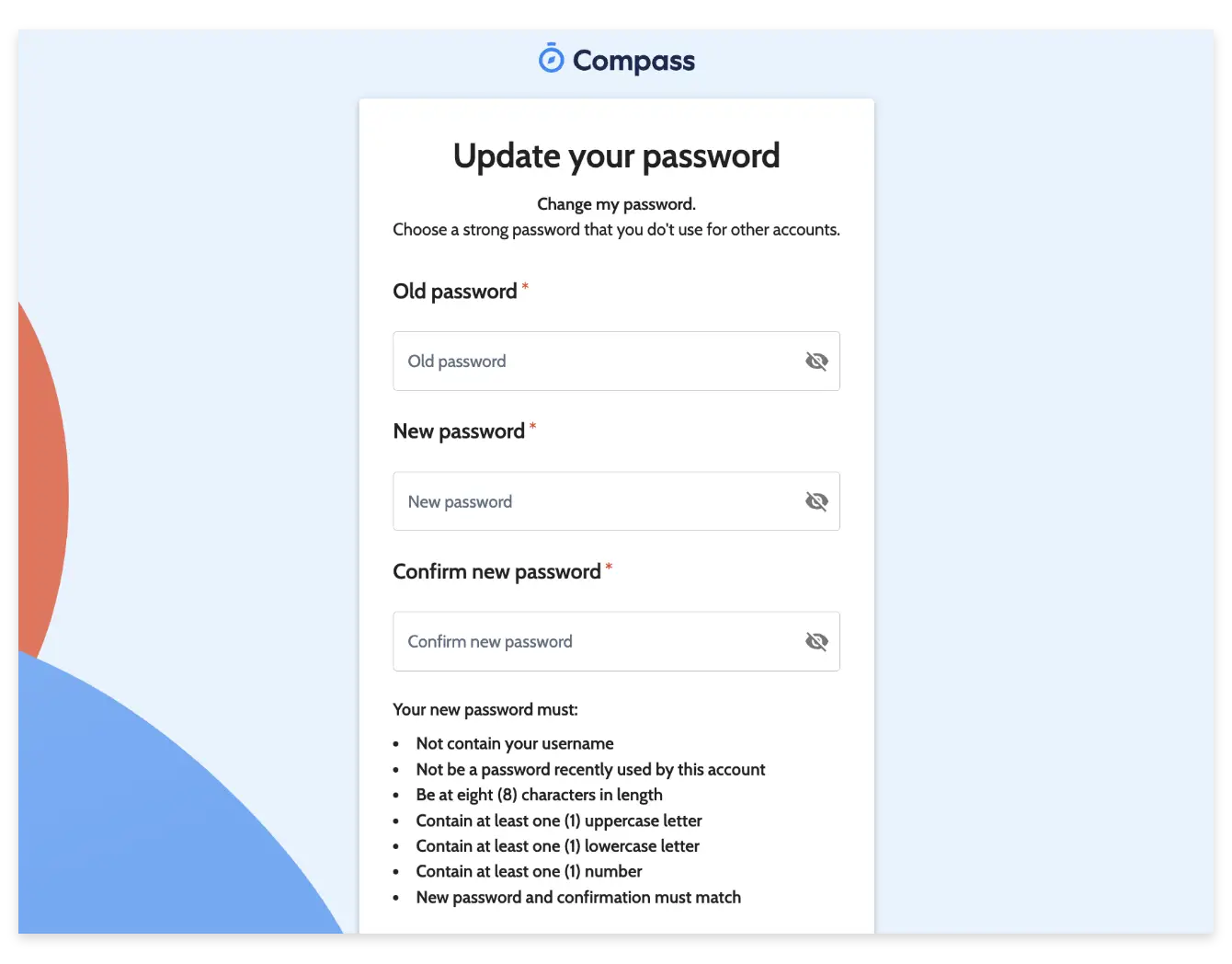
1

If you need to change your password, go to the cog icon and select ‘Change my Password’.

2

Enter in the required information ensuring your new password meets the set guidelines. Click ‘Save’ to update.

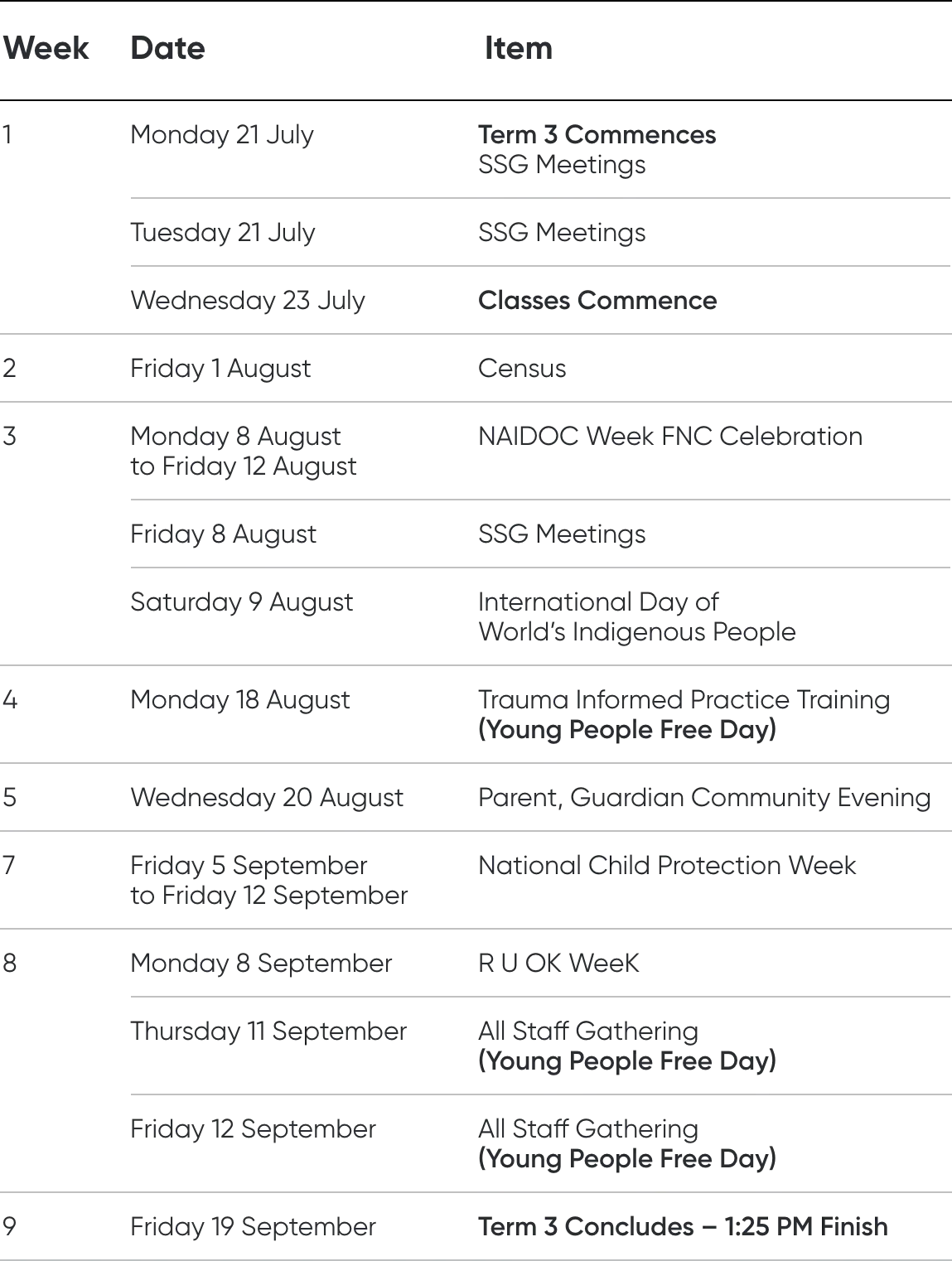
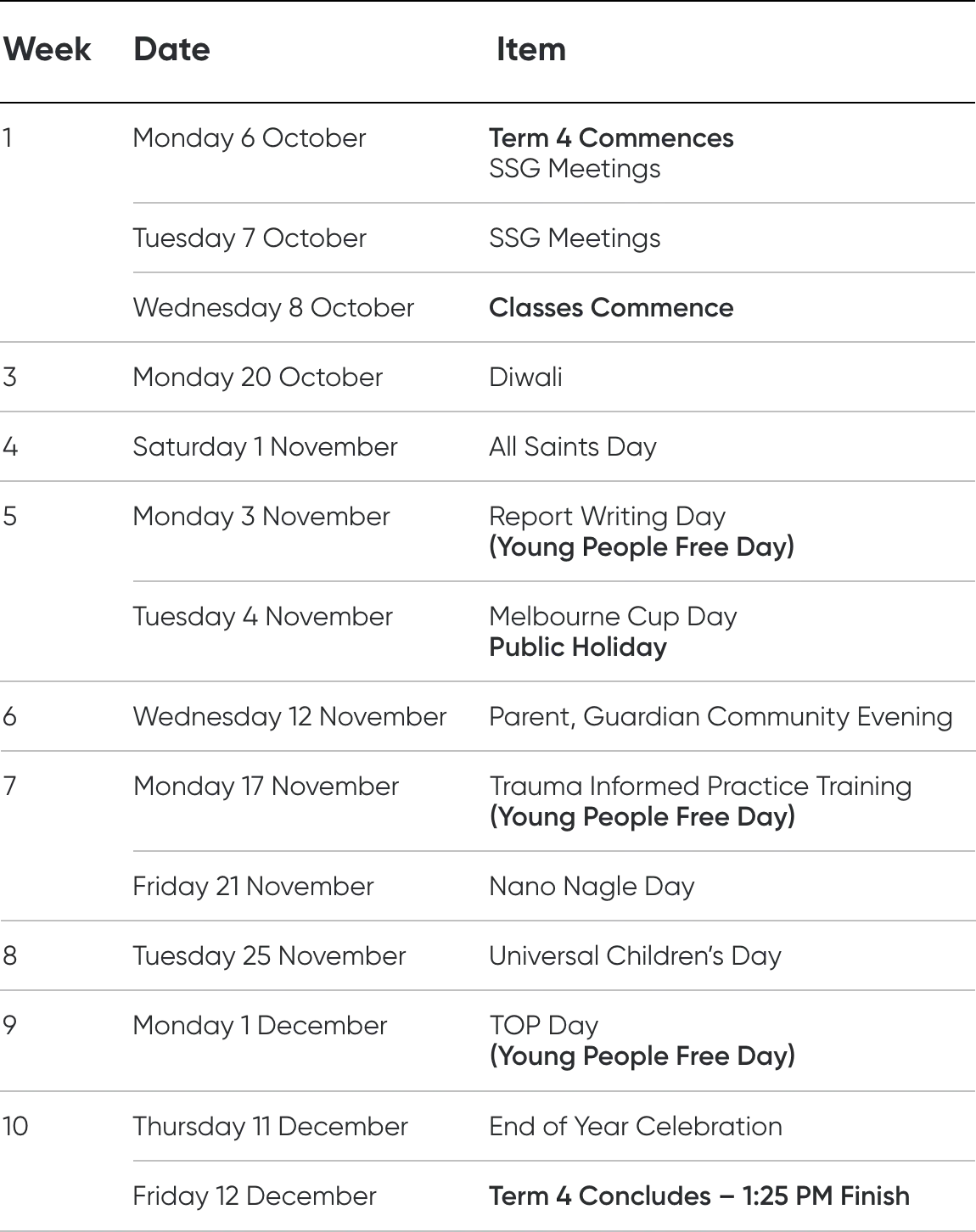
Semester 2

2025 Key Dates

This schedule includes term times, student-free days, community gatherings and celebrations.

Term 3

Term 4

Videos and information sessions

Our child safety team

Our Child Safety Team is here to help. If you or your child have any concerns about safety or wellbeing, please reach out — we’re here to listen and support.

Paul-Headshot
Paul Huggett
Child Safeguarding Lead – Ballarat/Bungaree

0000 0000

name@saintscollege.vic.edu.au

Rose Camwell
Rose Camwell
Child Safeguarding Lead – Fitzroy North/Sunshine

0000 0000

name@saintscollege.vic.edu.au

Suzannah Siddles BlendED
Suzannah Siddles
Child Safeguarding Lead – BlendED

0000 0000

name@saintscollege.vic.edu.au

Teegan Wilkie
Teegan Wilkie
Child Safeguarding Lead – Colac/Geelong

0000 0000

name@saintscollege.vic.edu.au

Tom-Mason-Saints-College
Tom Mason
Senior Manager of Child Safeguarding

0000 0000

name@saintscollege.vic.edu.au

Queries, complaints & feedback

Guidance for families needing to raise an issue or share feedback with Saints College

Contact us

For any enquiries, complaints and feedback please don’t hesitate to reach out to us today.

Complaint Handling Policy

We welcome feedback and take all complaints that are raised seriously. Learn about our complaint handling process.